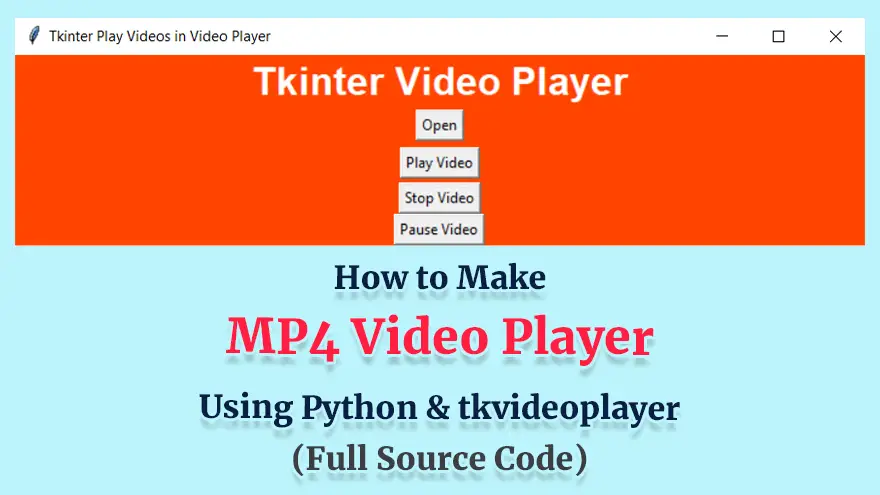
Creating a simple video player for MP4 files in Python might sound complex—but it doesn’t have to be.
In this article, I’ll walk you through how to build a working MP4 video player using the tkvideoplayer library (also known as tkVideoPlayer) with the standard GUI toolkit Tkinter.
You’ll get the full source code, setup tips, and some common pitfalls to avoid.
If you’ve been searching for “how to play MP4 in tkinter”, you’re in the right place.
tkvideoplayer?The tkvideoplayer library (on PyPI under tkvideoplayer) provides an easy-to-use widget for embedding video playback into a Tkinter GUI. It supports operations such as play, pause, stop, seek, and load video files.
Key things you should know:
av library).Because of these caveats, I’ll include a setup section next to make sure you’re ready before we go into code.
tkvideoplayerBefore writing code, make sure your environment is properly configured.
tkvideoplayer requires >=3.6.python3-tk (or equivalent) via your package manager.tkvideoplayerUse pip:
pip install tkvideoplayer
This command will install the latest version of tkvideoplayer.
av library version in tkvideoplayer. For example, this StackOverflow post warns: “version 9.1.1 of av does not have binary release for Python 3.11+. So if your Python version is 3.11+, you need to install the dependent modules (av and pillow) first and then run pip install --no-deps tkvideoplayer.”ffmpeg or necessary build tools installed.Video playback often relies on system codecs (via av, ffmpeg, etc.). On some systems (especially Linux/macOS), you may need to install ffmpeg manually:
# Example for Ubuntu:
sudo apt install ffmpeg
On Mac, you can use Homebrew:
brew install ffmpeg
Installation of codecs early can prevent playback issues later.
tkvideoplayerHere’s a minimal example showing how to load an MP4 file and play it inside a Tkinter window.
import tkinter as tk
from tkVideoPlayer import TkinterVideo

def main():
    root = tk.Tk()
    root.title("Simple MP4 Video Player")
    root.geometry("800x450")  # starting size

    videoplayer = TkinterVideo(master=root, scaled=True)
    videoplayer.load(r"sample_video.mp4")  # path to your MP4 file
    videoplayer.pack(expand=True, fill="both")

    # Controls: play, pause, stop buttons
    btn_frame = tk.Frame(root)
    btn_frame.pack(fill="x", pady=5)

    play_btn = tk.Button(btn_frame, text="Play",
                         command=videoplayer.play)
    play_btn.pack(side="left", padx=5)

    pause_btn = tk.Button(btn_frame, text="Pause",
                          command=videoplayer.pause)
    pause_btn.pack(side="left", padx=5)

    stop_btn = tk.Button(btn_frame, text="Stop",
                         command=videoplayer.stop)
    stop_btn.pack(side="left", padx=5)

    root.mainloop()

if __name__ == "__main__":
    main()
TkinterVideo from tkVideoPlayer (note the capitalization difference) and create a root Tk window.scaled=True ensures the video will scale with the window size..load(<filepath>) to load the MP4 file..play(), .pause(), .stop() are straightforward controls.This simple player covers the core of playback using tkvideoplayer. But of course, you’ll likely want to enhance it with additional features, which we’ll cover now.
Here are several ways to upgrade your basic player into a more polished application.
The tkvideoplayer library supports seeking to timestamps. You can link a Tkinter Scale or ttk.Scale widget to control playback position.
from tkVideoPlayer import TkinterVideo
import tkinter as tk
from tkinter import ttk

root = tk.Tk()

videoplayer = TkinterVideo(master=root, scaled=True)
videoplayer.load("sample_video.mp4")
videoplayer.pack(expand=True, fill="both")

# slider
slider = ttk.Scale(root, from_=0, to=videoplayer.duration(), orient="horizontal")

def update_slider(*args):
    position = videoplayer.current_pos()
    slider.set(position)

def seek_video(event):
    new_pos = slider.get()
    videoplayer.seek(int(new_pos))

slider.pack(fill="x", padx=5, pady=5)
slider.bind("<ButtonRelease-1>", seek_video)

# schedule slider update
def refresh():
    update_slider()
    root.after(500, refresh)

refresh()
root.mainloop()
Note: You must check for availability of methods like .duration() or .current_pos() in your version of tkvideoplayer, as functionality may vary. Some users have reported limitations. For example, the StackOverflow playlist example uses the <<Ended>> event to trigger next video.
You may want to support playing multiple videos in sequence. Example logic:
import os
import tkinter as tk
from tkVideoPlayer import TkinterVideo
import functools

video_folder = "path/to/videos"
file_list = [os.path.join(video_folder, f) for f in os.listdir(video_folder) if f.endswith(".mp4")]

root = tk.Tk()
videoplayer = TkinterVideo(master=root, scaled=True)
videoplayer.pack(expand=True, fill="both")

playlist_iter = iter(file_list)

def load_next(event=None):
    try:
        next_file = next(playlist_iter)
    except StopIteration:
        return  # no more videos
    videoplayer.load(next_file)
    videoplayer.play()

# Bind event when video ends
videoplayer.bind("<<Ended>>", functools.partial(lambda e: load_next()))

# Start first video
load_next()

root.mainloop()
This uses the <<Ended>> event offered by tkvideoplayer when playback finishes.
Depending on the underlying backend, tkvideoplayer may allow volume control via videoplayer.volume(value) (0.0 to 1.0). If not, you may need to integrate with other libraries like python-vlc. But for many use-cases volume control may not be critical.
You can toggle full-screen in Tkinter:
def toggle_fullscreen(event=None):
    root.attributes("-fullscreen", not root.attributes("-fullscreen"))

root.bind("<F11>", toggle_fullscreen)
root.bind("<Escape>", lambda e: root.attributes("-fullscreen", False))
This adds a better user experience for video playback.
If the video file cannot be loaded (or codec missing) you should catch exceptions:
try:
    videoplayer.load("sample_video.mp4")
except Exception as e:
    tk.messagebox.showerror("Error", f"Could not load video: {e}")
    root.destroy()
This adds robustness.
Even though tkvideoplayer makes things simple, you may run into the following issues:
av may be missing, causing pip install tkvideoplayer to fail. Workaround: install av manually or use an earlier Python version.ffmpeg or ensuring the video uses H.264/AAC helps.tkvideoplayer, possibly due to missing dependencies or unsupported video codecs. Redditffmpeg or equivalent codec support is installed.tkvideoplayer version.Here’s a more complete script putting together many of the features:
import tkinter as tk
from tkinter import ttk, filedialog, messagebox
from tkVideoPlayer import TkinterVideo
import os
import functools

class MP4Player(tk.Tk):
    def __init__(self):
        super().__init__()
        self.title("MP4 Video Player")
        self.geometry("900x500")

        # Video player widget
        self.videoplayer = TkinterVideo(master=self, scaled=True)
        self.videoplayer.pack(expand=True, fill="both")

        # Control bar
        ctrl_frame = tk.Frame(self)
        ctrl_frame.pack(fill="x", padx=5, pady=5)

        self.play_btn = tk.Button(ctrl_frame, text="Play", command=self.play_video)
        self.play_btn.pack(side="left")

        self.pause_btn = tk.Button(ctrl_frame, text="Pause", command=self.videoplayer.pause)
        self.pause_btn.pack(side="left", padx=4)

        self.stop_btn = tk.Button(ctrl_frame, text="Stop", command=self.videoplayer.stop)
        self.stop_btn.pack(side="left", padx=4)

        self.open_btn = tk.Button(ctrl_frame, text="Open", command=self.open_file)
        self.open_btn.pack(side="right")

        # Slider for seeking
        self.slider = ttk.Scale(self, from_=0, to=100, orient="horizontal", command=self.on_slide)
        self.slider.pack(fill="x", padx=5, pady=5)

        # Bind events
        self.videoplayer.bind("<<PositionChanged>>", self.update_slider)
        self.videoplayer.bind("<<DurationChanged>>", self.set_slider_max)
        self.videoplayer.bind("<<Ended>>", self.on_video_end)

        # Playlist
        self.playlist = []
        self.current_index = 0

        # Fullscreen toggle
        self.bind("<F11>", self.toggle_fullscreen)
        self.bind("<Escape>", lambda e: self.attributes("-fullscreen", False))

    def open_file(self):
        files = filedialog.askopenfilenames(filetypes=[("MP4 files", "*.mp4")])
        if files:
            self.playlist = list(files)
            self.current_index = 0
            self.load_current()

    def load_current(self):
        if not self.playlist:
            return
        filepath = self.playlist[self.current_index]
        try:
            self.videoplayer.load(filepath)
            self.videoplayer.play()
        except Exception as e:
            messagebox.showerror("Error", f"Could not load video: {e}")
            return

    def play_video(self):
        if self.videoplayer.is_paused():
            self.videoplayer.play()
        else:
            self.load_current()

    def on_slide(self, value):
        try:
            pos = float(value)
            self.videoplayer.seek(int(pos))
        except Exception:
            pass

    def update_slider(self, event=None):
        try:
            pos = self.videoplayer.current_pos()
            self.slider.set(pos)
        except Exception:
            pass

    def set_slider_max(self, event=None):
        try:
            dur = self.videoplayer.duration()
            self.slider.config(to=dur)
        except Exception:
            pass

    def on_video_end(self, event=None):
        # move to next video if in playlist
        if self.current_index + 1 < len(self.playlist):
            self.current_index += 1
            self.load_current()

    def toggle_fullscreen(self, event=None):
        self.attributes("-fullscreen", not self.attributes("-fullscreen"))

if __name__ == "__main__":
    app = MP4Player()
    app.mainloop()
This example covers:
PositionChanged and DurationChanged events (check availability in your version)You can expand further (e.g., volume, subtitle support, UI styling) depending on your project.
Q1: Does tkvideoplayer support formats other than MP4?
A: Yes — it supports any format that your system’s codecs and the underlying av/FFmpeg library can decode. However, MP4 (H.264/AAC) is widely supported and recommended.
Q2: My video plays but there is no sound. What’s wrong?
A: This is a known issue in some environments. Check if your codecs support audio streams (AAC, MP3). Also verify your system volume and root window isn’t muted. If using Linux, ensure you have appropriate audio drivers and packages installed. The library focuses more on video frames than full media-player features.
Q3: I got “ModuleNotFoundError: No module named ‘tkVideoPlayer’” after installation.
A: Make sure you installed tkvideoplayer (lowercase) via pip install tkvideoplayer. Then import using from tkVideoPlayer import TkinterVideo (note the uppercase ‘V’). Some confusion arises because package names and import names differ.
Q4: Installation failed on Python 3.11 with wheel building errors.
A: This is usually due to av library lacking binary wheels for Python 3.11. Workaround: either install av manually before installing tkvideoplayer, or use Python 3.10 or earlier.
Q5: How do I integrate this video player into a larger GUI application?
A: You can embed the TkinterVideo widget within any Tkinter layout (frames, panes). For example, you could combine it with a sidebar of file thumbnails, a menu Bar, or wrap it with a custom styled window. Because it inherits from a Tkinter widget, it integrates seamlessly.
Q6: Can I add subtitles or external audio tracks?
A: Not directly via tkvideoplayer (at least not in its core API). For advanced features like subtitles, multiple audio tracks, or streaming, you may need a more full-featured library like python-vlc or ffmpeg integration.
If you ever wondered “how to build an MP4 video player in Python using Tkinter”, then the tkvideoplayer library has just made it much easier. With a few lines of setup and some basic code you can have a working player that loads MP4 files, plays/pauses/stops, supports seeking, and scales with the window.
Remember to:
pip install tkvideoplayer (watch out for dependency issues)By following this approach, you’ll have a solid foundation on which you can build your own media application — maybe a custom video viewer, educational tool, or desktop media player.
Google Chrome has dominated web browsing for over a decade with 71.77% global market share.…
Perplexity just made its AI-powered browser, Comet, completely free for everyone on October 2, 2025.…
You've probably heard about ChatGPT Atlas, OpenAI's new AI-powered browser that launched on October 21,…
Perplexity Comet became free for everyone on October 2, 2025, bringing research-focused AI browsing to…
ChatGPT Atlas launched on October 21, 2025, but it's only available on macOS. If you're…
Two AI browsers just entered the ring in October 2025, and they're both fighting for…